
Supported platforms: CODESYS 3.5
This section describes how to take Epec GlobE service into use.
Epec GlobE is a remote management service for OEMs and machine/fleet owners to remotely access the machine data.
|
|
Required hardware:
Required software:
|
To use GlobE with a modem connection:
1. A 6000 series unit with a radio connection is required
2. Correctly connect the antenna
3. Install and configure the SIM card correctly
SIM's pin code request must be switched off
SIM cards provided by Epec are already configured
4. GlobE registration and account ID from Epec is required
To use GlobE with Ethernet or WLAN:
1. A 6000 series unit is required
2. Ethernet cable or WLAN antenna is connected correctly
3. CODESYS application is required to open the WLAN connection. Refer to Using WLAN
4. Set the 6000 series unit's network settings
IP address, default IP address is 192.168.0.2
Units with a display, refer to Configuring Ethernet and DNS Settings (6000 Series)
Units without a display, refer to Configuring Settings Using a File (6000 Series)
5. GlobE registration and account ID from Epec is required
Setup GlobE in Epec MultiTool Creator according to Epec MultiTool Creator User Manual, section Using GlobE. Create the CODESYS application.
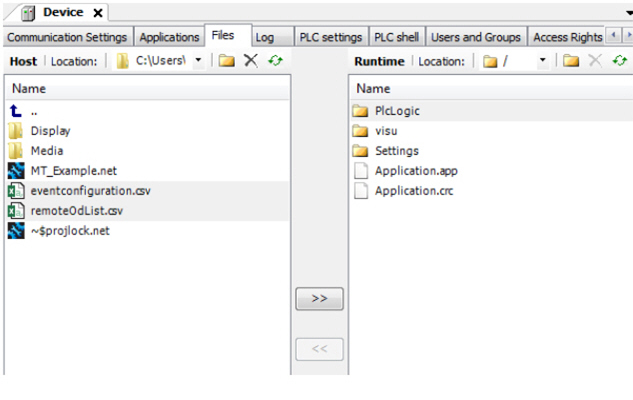
Compile the CODESYS application and download it to the 6000 series unit. Copy the MultiTool Creator generated GlobE configuration files eventconfiguration.csv and remoteOdList.csv to the user application folder.
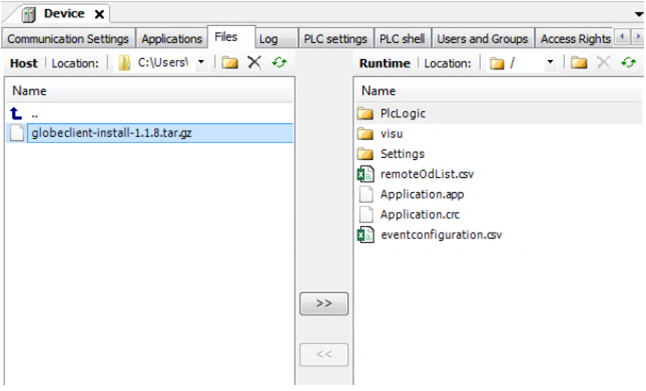
Copy GlobE client installation package globeclient_install<version>.tar.gz to the user application folder.
The application needs to enable GlobE operation by using the G_GLOBE_Enable status in code template.
It is recommended to handle application initialization procedures first before enabling GlobE.
GlobE will use CANopen SDO protocol to read information from the CAN bus.
Initialize the variables and their send intervals on the GlobE tab in MultiTool Creator.
Include the remoteOdList.csv file in the application software package that is downloaded to the remote unit.
The variables are sent automatically to GlobE. If the device is not connected to the server, the values are stored in the device and sent when a connection is available.
1. Initialize parameters in MultiTool Creator.
2. Include the parameter adjustment .csv file in the application software package that is downloaded to the remote unit
1. Initialize events in MultiTool Creator.
2. Create a file called eventtexts.txt (see the example available from Epec's Extranet > Downloads > GlobE > eventtexts.txt)
this file includes an event specific text identifier and text translations for different languages
3. Include the .txt file in the application software package that is downloaded to the remote unit
|
|
Check that the software package downloaded to the 6000 series unit includes the needed files:
|
Training material from Epec Extranet
Source file topic000978.htm
Last updated 4-Sep-2025
